![OCI — Deploying the Linux PAM Module [Part 4]](/images/blog/oci-unified-authentication-with-azure-identities-part-1/featured.png)
This guide covers deploying the Linux PAM module on OCI endpoints, enabling SSH authentication against OCI Identity Domains.
1. Download PAM Module from OCI
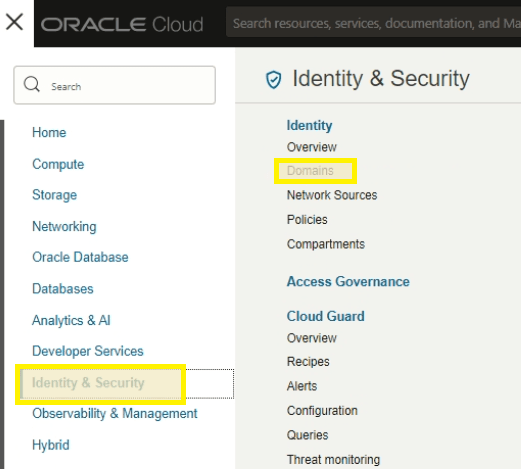
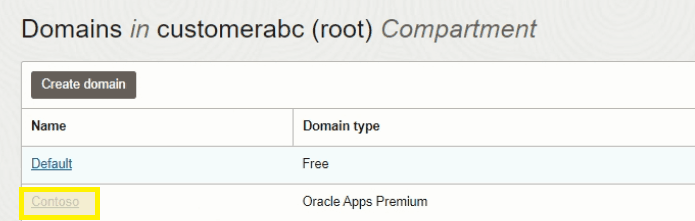
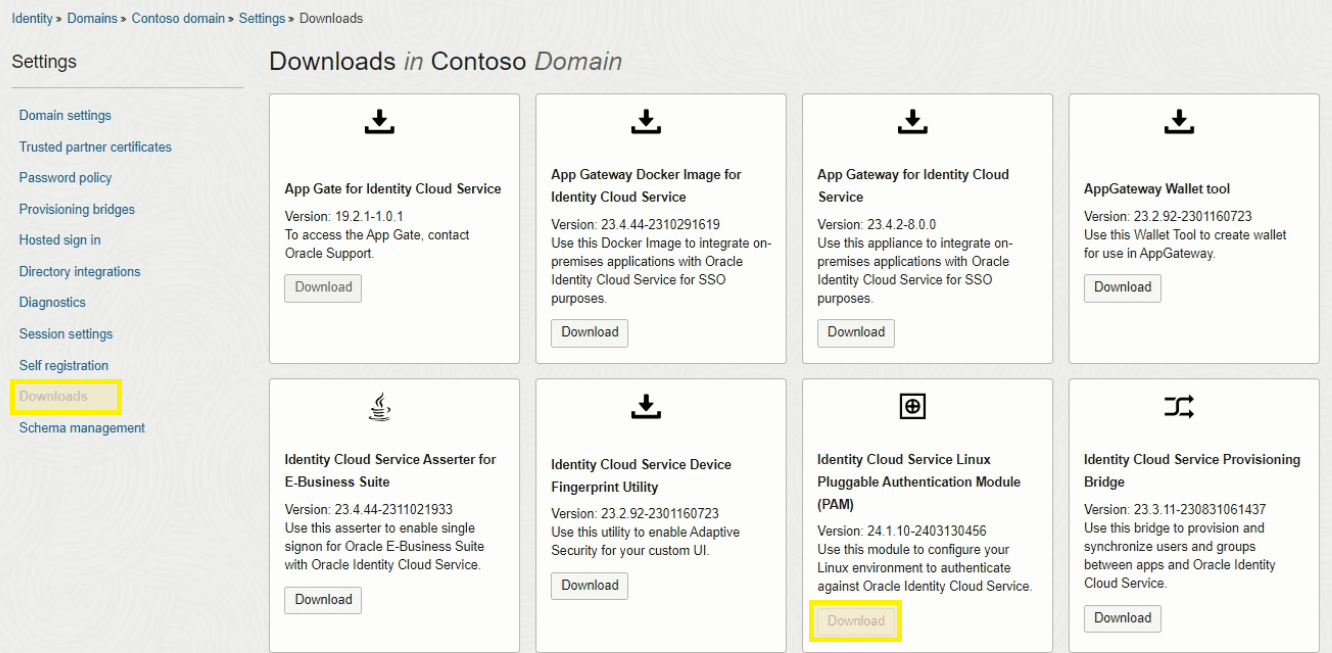
Navigate to Identity & Security > Domains > Settings > Downloads in the OCI console.
2. Install the PAM Module
Extract the downloaded zip and copy the RPM files to the target server:
# Copy RPMs to /tmp on the target server
scp pam_oracle_cloud.rpm authn_oracle_cloud.rpm user@server:/tmp/
Install dependencies:
yum install json-c curl -yInstall the PAM RPMs:
yum install /tmp/pam_oracle_cloud.rpm /tmp/authn_oracle_cloud.rpm -y3. Create the Wallet
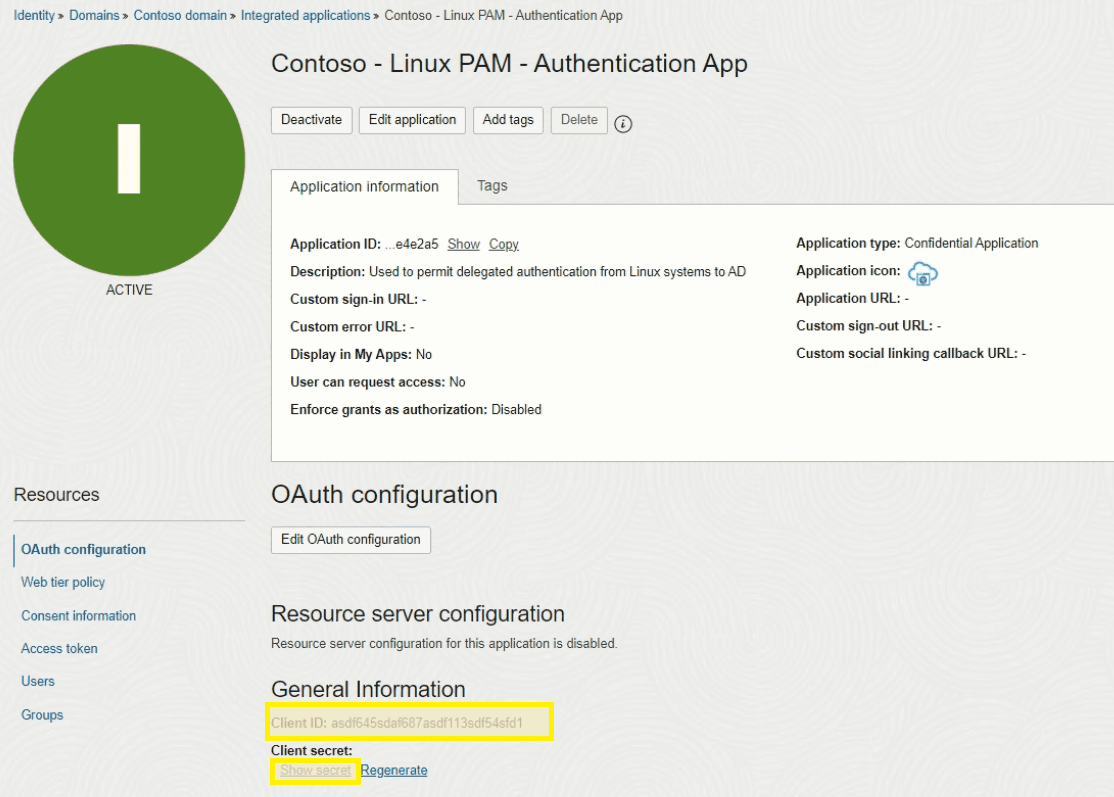
The wallet stores the Client Secret for the PAM Confidential Application created in Part 3. Use the walletMgr utility to create it — it will prompt you for the Client Secret interactively:
/opt/oracle/pam_cloud/bin/walletMgr create4. Install and Configure SSSD
Install SSSD:
yum install sssd -yConfigure /etc/sssd/sssd.conf:
[sssd]
domains = LOCAL, IDCS
services = nss, pam
config_file_version = 2

[nss]
filter_groups = root
filter_users = root

[pam]

[domain/LOCAL]
id_provider = files

[domain/IDCS]
id_provider = proxy
proxy_lib_name = sssd_proxy_oracle_cloud
auth_provider = proxy
proxy_pam_target = sssd_proxy_oracle_cloud
enumerate = true
cache_credentials = true
SSSD requires strict permissions on its config file:
chmod 600 /etc/sssd/sssd.conf5. Configure PAM for SSSD Proxy
Create /etc/pam.d/sssd_proxy_oracle_cloud:
auth     required pam_oracle_cloud.so
account  required pam_permit.so
6. Configure SSH PAM
Edit /etc/pam.d/sshd and add the following line near the top:
auth sufficient pam_oracle_cloud.so7. Enable Challenge-Response Authentication
Edit /etc/ssh/sshd_config and set:
ChallengeResponseAuthentication yesNote: In OpenSSH 8.7+ (Oracle Linux 9+), this directive was renamed to
KbdInteractiveAuthentication. Use whichever matches your version.
8. Configure OPC
Edit /etc/opc.conf with the details from the Linux PAM Confidential Application created in Part 3:
[General]
TenantName = idcs-<ID>
ClientID = <Client ID from Part 3 PAM Confidential Application>
WalletDir = /opt/oracle/pam_cloud/wallet
IdcsUrl = https://idcs-<ID>.identity.oraclecloud.com
LogLevel = DEBUG
LogFile = /var/log/opc.log

[SSSD]
EnumerateUsers = true
EnumerateGroups = true
DefaultShell = /bin/bash
DefaultHomeDir = /home/%u
9. Restart Services
Enable SSSD auth and restart all related services:
authconfig --enablesssd --enablesssdauth --enablemkhomedir --updateall
systemctl restart sssd
systemctl restart sshd
Note:
authconfigis deprecated on RHEL/Oracle Linux 8+. On newer systems, useauthselectinstead:authselect select sssd with-mkhomedir --force
10. Test
Verify the user can be resolved:
id usernameIf everything is configured correctly, you should see the UID, GID, and group memberships pulled from OCI Identity Domains.